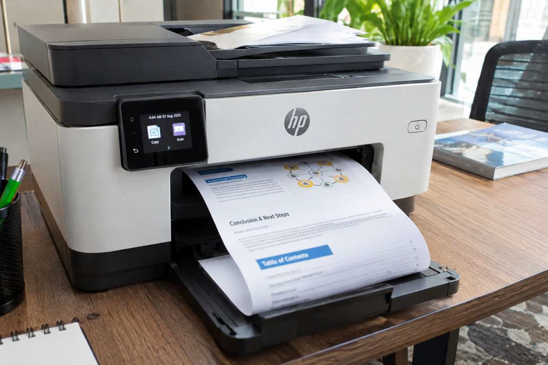
Printing on both sides of the paper is one of the easiest ways to save money. You use roughly half the paper for long documents. Your stack of pages gets slimmer too.
The catch is that many people don’t know how to switch it on, or aren’t sure whether their printer supports it. Let’s sort that out.
Automatic or Manual Duplex?
“Duplex” just means two-sided printing. HP printers do it in one of two ways.
- Automatic duplex: The printer flips the page itself. You press print and walk away.
- Manual duplex: The printer prints one side, then you flip the stack and put it back in so it prints the other side.
Many HP LaserJet and office models have automatic duplex. Some basic home models only do manual. Check your manual or the printer’s specs to see which yours has.
How to Print Double-Sided on Windows
- Open your document and press Ctrl + P.
- Choose your HP printer.
- Open Printer Properties or Preferences.
- Find the option labelled Print on Both Sides or Duplex.
- Choose flip on the long edge for normal documents, or the short edge for calendars and notepads.
- Click Print.
Menu names differ by printer and program, so look around the settings if yours are worded differently.
How to Print Double-Sided on a Mac
- Press Command + P.
- Select your HP printer.
- Open the dropdown menu that shows options such as Layout.
- Choose Two-Sided and pick the binding style.
- Click Print.
See also: Live Chat with AI Astrologer: Real-Time Guidance for 2026 Life Shifts
Manual Duplex, Step by Step
If your printer has no automatic duplex:
- Choose the option to print odd pages first, or use “Manual Duplex” if your driver offers it.
- When the first set is done, take the stack out.
- Flip it and put it back in the tray, following the printer’s on-screen instructions.
- Print the second side.
The tricky part is which way the paper faces. Do a test with two or three pages first, so you don’t waste a whole stack.
Make Duplex the Default
If you want double-sided every time, set it as the default. In the printer’s settings on your computer, switch on two-sided printing as the default option. You can still turn it off for one-off jobs, like letterhead or labels.
This is one of the easiest habits for an office. It saves paper without anyone thinking about it.
Duplex Not Working? Try These
- The option is greyed out. Your printer may not support automatic duplex, or the driver needs updating.
- Pages come out upside down. Switch between long-edge and short-edge flipping.
- Paper jams during printing. Use dry, good-quality paper and avoid thick or damaged sheets.
- It prints one side only. Check the settings in the document’s own print window as well as the printer settings.
Updating the driver from HP’s support website fixes many duplex problems. The HP Smart app can also help.
Why Duplex Sometimes Causes Jams
When a printer flips a page, the paper takes a longer path through the machine. That means more chances for a jam if rollers are worn or dirty. If your jams only happen on double-sided jobs, or keep coming back with good paper, a part inside may be worn. A trusted HP printer repair in Dubai service can test the paper path and replace what’s tired, so duplex works smoothly again.
Tips for Better Double-Sided Printing
- Use paper that’s thick enough that text doesn’t show through
- Keep paper dry and flat
- Don’t overfill the tray
- Use the right paper type setting
- Print a test page before big jobs
- Keep the printer clean and dust-free
Also keep toner in mind. Double-sided jobs run longer, so a nearly empty cartridge may run out mid-job. Keeping a spare of the right HP LaserJet toner for your model avoids that.
Mistakes to Avoid
- Assuming every printer has automatic duplex
- Flipping paper the wrong way for manual duplex
- Using damp or curled paper
- Forgetting to check the long-edge setting
- Ignoring jams that only happen in duplex mode
- Opening the printer without training
When Should You Get Extra Help?
Ask a technician if:
- Duplex jobs jam every time, even with good paper
- You hear grinding or clicking
- Pages come out crumpled or torn
- The printer shows errors that won’t clear
Please don’t take the printer apart yourself. The fuser inside gets very hot, and small parts break easily.
Final Thoughts
Double-sided printing is simple once you know where to find it. Check whether your HP printer is automatic or manual, switch the option on, and set it as your default. You’ll save paper, space and money without much effort. If duplex keeps jamming, get the printer checked.